Grid Image Recognition
The Grid Image method is used to solve CAPTCHAs that present an image divided into a grid of tiles, where users must select specific tiles based on a given instruction—commonly seen in reCAPTCHA V2 image challenges. CaptchaAI analyzes the image and returns the indices of the tiles that should be clicked.
Overview
Grid Image captchas typically appear with:
- A 3×3 or 4×4 grid of image tiles
- A text instruction describing what to select (e.g., "crosswalks", "traffic lights", "cars")
- Returns an array of indices for tiles matching the instruction
- Cells are numbered left-to-right, top-to-bottom
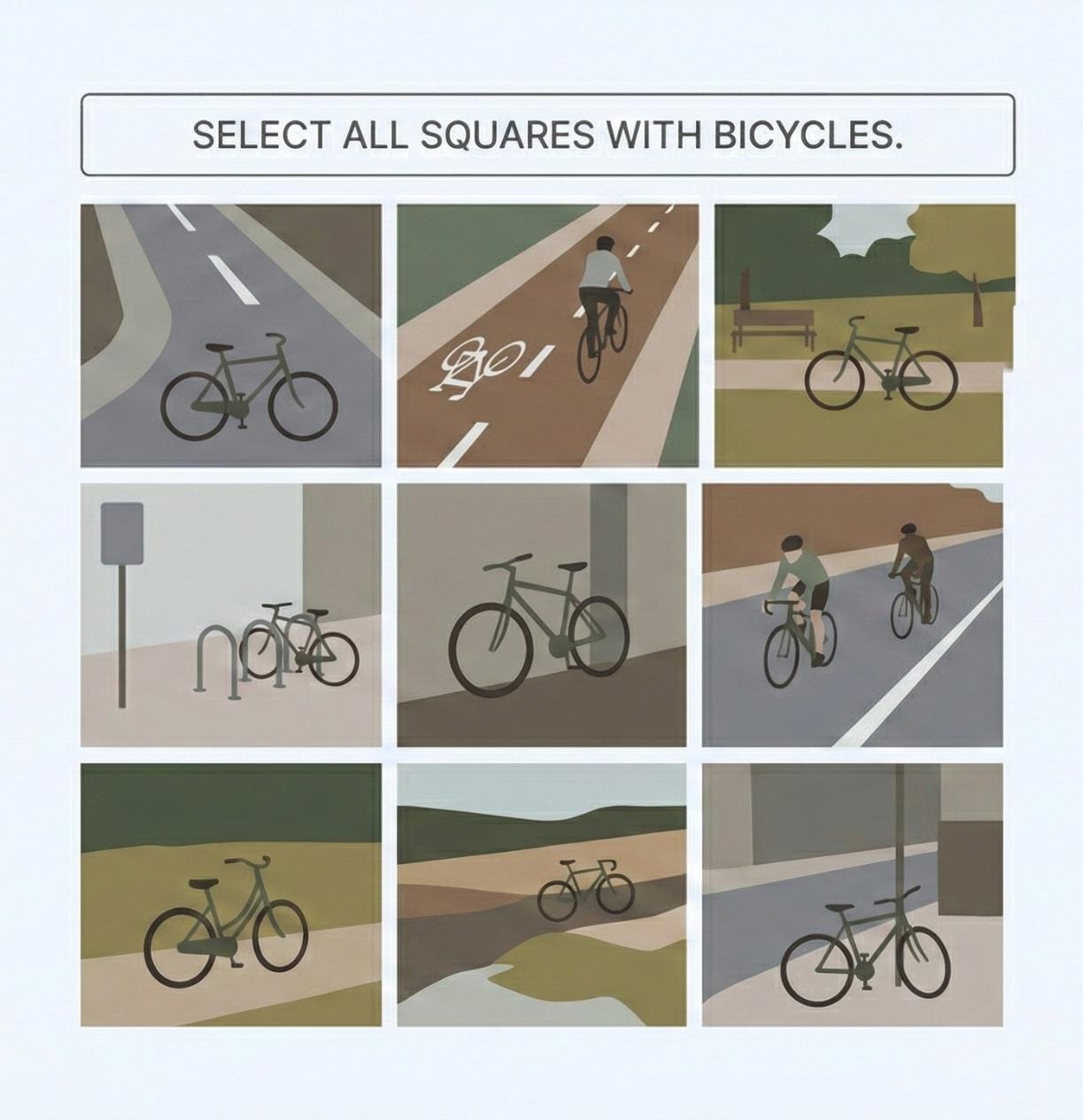
Example: A 3×3 grid captcha asking to "SELECT ALL SQUARES WITH BICYCLES"
How to Solve Grid Image Captcha
Step 1: Prepare the Image and Instruction
- Capture the full reCAPTCHA grid image (not cropped)
- Identify the instruction text (e.g., "crosswalks", "traffic lights", "cars")
- Determine grid size: 3×3 or 4×4
The grid cells are numbered in reading order:
3×3 Grid:          4×4 Grid:
1 2 3              1  2  3  4
4 5 6              5  6  7  8
7 8 9              9  10 11 12
                   13 14 15 16
Step 2: Submit the Task to CaptchaAI
Send a POST request to https://ocr.captchaai.com/in.php with the image file and instruction.
import requests

# Prepare the data
with open('grid_image.jpg', 'rb') as f:
    files = {'file': f}
    data = {
        'key': 'YOUR_API_KEY',
        'method': 'post',
        'grid_size': '3x3',
        'img_type': 'recaptcha',
        'instructions': 'crosswalks',
        'json': '1'
    }

    response = requests.post('https://ocr.captchaai.com/in.php', files=files, data=data)
    result = response.json()
    task_id = result['request']
Step 3: Retrieve the Solution
Wait 5 seconds, then poll for the result using a GET request to https://ocr.captchaai.com/res.php:
import time
import json

time.sleep(5)  # Wait 5 seconds

params = {
    'key': 'YOUR_API_KEY',
    'action': 'get',
    'id': task_id,
    'json': '1'
}

response = requests.get('https://ocr.captchaai.com/res.php', params=params)
result = response.json()

if result['status'] == 1:
    solution = json.loads(result['request'])  # e.g., [1, 3, 6, 9]
    print(f"Grid cells to click: {solution}")
Step 4: Apply the Solution
The response contains an array of cell indices that match the instruction. For example:
[1, 3, 6, 9]means cells 1, 3, 6, and 9 contain the matching objects- Click or select these cells in your automation script to complete the captcha
Response Format
JSON Response (with json=1):
{
  "status": 1,
  "request": "[1, 3, 6, 9]"
}
Plain Text Response:
OK|[1, 3, 6, 9]
Common Errors
- ERROR_BAD_PARAMETERS: Missing or invalid parameters. Verify grid_size, instructions, and img_type are correct.
- ERROR_WRONG_FILE_EXTENSION: Unsupported image format. Use JPG, JPEG, PNG, or GIF.
- ERROR_ZERO_BALANCE: Insufficient account balance. Top up your account to continue.
- CAPCHA_NOT_READY: Solution not ready yet. Wait 5 seconds and poll again.
For complete error documentation, see the Error Handling Guide.
Supported Instructions
Common instructions include: crosswalks, traffic lights, cars, buses, motorcycles, bicycles, tractors, stairs, bridges, fire hydrants, parking meters, and many more.
Supported Instructions
Common instructions include: crosswalks, traffic lights, cars, buses, motorcycles, bicycles, tractors, stairs, bridges, fire hydrants, parking meters, and many more.
Tips & Best Practices
Tip: Always send the original CAPTCHA image directly from the browser—avoid cropped or screenshot-based images
Tip: Use
json=1parameter for structured responses that are easier to parse
Tip: Ensure the instruction text matches exactly what's shown on the captcha
Tip: If accuracy is low, verify you're sending the correct grid_size (3x3 or 4x4)
API Reference
For complete API specifications and advanced options, visit the CaptchaAI API Documentation and select Grid Image Captcha from the sidebar.
Related Guides
- Normal Captcha - Simple image-to-text recognition
- BLS Captcha - Similar 3×3 grid solving method
- reCAPTCHA V2 - Complete reCAPTCHA v2 solving
- Error Handling - Complete error codes and solutions