reCAPTCHA V2
reCAPTCHA V2 - commonly known as the "I'm not a robot" checkbox—is one of the most widely used CAPTCHA types. It may appear as a simple checkbox or trigger an image/audio challenge.
Overview
reCAPTCHA V2 typically appears as:
- A checkbox with the text "I'm not a robot"
- May trigger an image challenge requiring you to select specific images
- Returns a token that must be injected into the page
- Used widely across login forms, contact forms, and registration pages
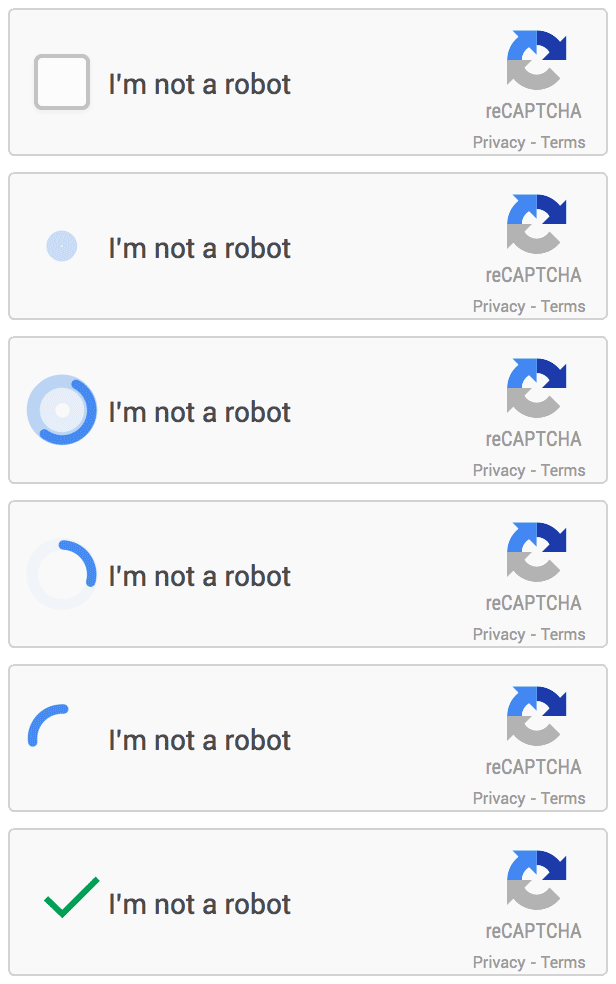
Example: reCAPTCHA V2 "I'm not a robot" checkbox and image challenge
How to Solve reCAPTCHA V2
Step 1: Locate the Site Key
Find the reCAPTCHA site key from the target webpage:
- Inspect the element's code on the page where you found reCAPTCHA
- Find a link that begins with
www.google.com/recaptcha/api2/anchoror find thedata-sitekeyparameter - Copy the value of the
kparameter from the link (or the value ofdata-sitekeyparameter)
Step 2: Submit the Task to CaptchaAI
Send a GET request to https://ocr.captchaai.com/in.php with the sitekey and page URL:
import requests

# Submit the captcha task
params = {
    'key': 'YOUR_API_KEY',
    'method': 'userrecaptcha',
    'googlekey': '6Le-wvkSVVABCPBMRTvw0Q4Muexq1bi0DJwx_mJ-',
    'pageurl': 'https://example.com/page',
    'json': '1'
}

response = requests.get('https://ocr.captchaai.com/in.php', params=params)
result = response.json()
task_id = result['request']
print(f"Task ID: {task_id}")
Step 3: Retrieve the Solution
Wait 15-20 seconds, then poll for the result using a GET request to https://ocr.captchaai.com/res.php:
import time

time.sleep(15)  # Wait 15 seconds

params = {
    'key': 'YOUR_API_KEY',
    'action': 'get',
    'id': task_id,
    'json': '1'
}

response = requests.get('https://ocr.captchaai.com/res.php', params=params)
result = response.json()

if result['status'] == 1:
    token = result['request']
    print(f"Solution Token: {token}")
Step 4: Inject the Token
Inject the token into the g-recaptcha-response field and submit the form:
# Using Selenium
from selenium import webdriver

driver = webdriver.Chrome()
driver.get('https://example.com/page')

# Inject the token
driver.execute_script(f'document.getElementById("g-recaptcha-response").innerHTML = "{token}";')

# Submit the form
driver.find_element_by_id('recaptcha-form').submit()
Response Format
JSON Response (with json=1):
{
  "status": 1,
  "request": "03AHJ_Vuve5Asa4koK3KSMyUkCq0vUFCR5Im4CwB7PzO3dCxIo..."
}
Plain Text Response:
OK|03AHJ_Vuve5Asa4koK3KSMyUkCq0vUFCR5Im4CwB7PzO3dCxIo...
Common Errors
- ERROR_WRONG_USER_KEY: API key is incorrect format. Check your API key (32 characters).
- ERROR_KEY_DOES_NOT_EXIST: API key doesn't exist. Verify your API key.
- ERROR_ZERO_BALANCE: Insufficient account balance. Top up your account to continue.
- ERROR_PAGEURL: pageurl parameter is missing. Provide the full page URL.
- ERROR_WRONG_GOOGLEKEY: sitekey is blank or malformed. Verify the sitekey extraction.
- ERROR_BAD_TOKEN_OR_PAGEURL: Invalid googlekey and pageurl pair. Check that reCAPTCHA is not in an iframe.
- CAPCHA_NOT_READY: Solution not ready yet. Wait 5 seconds and poll again.
For complete error documentation, see the Error Handling Guide.
Tips & Best Practices
Tip: Always ensure you have the correct sitekey and pageurl combination. If reCAPTCHA is loaded inside an iframe, use the iframe's URL.
Tip: Use
json=1parameter for structured responses that are easier to parse.
Tip: Include proxy and user-agent parameters for better accuracy on protected sites.
API Reference
For complete API specifications and advanced options, visit the CaptchaAI API Documentation and select reCAPTCHA V2 from the sidebar.